Download BatteryInfoView for Windows
Monitor your laptop battery health, capacity, voltage, and charge cycles in real time. Lightweight, portable, and no installation required.
System requirements
BatteryInfoView has almost no system requirements. It runs on nearly any Windows machine with a battery.
BatteryInfoView is a portable utility that weighs about 115 KB. There is no installer, no .NET dependency, and no runtime library to worry about. If your laptop runs Windows, this tool will run on it. The 32-bit build works on older systems dating back to Windows 2000, while the 64-bit build is available for modern hardware.
| Component | Minimum | Recommended |
|---|---|---|
| Operating system | Windows 2000 or later | Windows 10 / 11 (64-bit) |
| Processor | Any x86 or x64 CPU | 1 GHz or faster |
| RAM | 32 MB free | 64 MB free |
| Disk space | ~200 KB (portable, no install) | 1 MB for logs and exports |
| Display | 800 x 600 | 1280 x 720 or higher |
| Battery | Laptop or tablet battery present | Any ACPI-compliant battery |
| Internet | Not required | Not required (fully offline) |
BatteryInfoView is Windows-only. It reads battery data through the Windows ACPI interface, so macOS and Linux are not supported. Both the 32-bit and 64-bit builds are standalone ZIP archives you can run from any folder or USB drive.
Key Features
BatteryInfoView packs detailed battery diagnostics into a single portable executable. Here is what it does.
Battery Health Tracking
Compares your battery’s current full-charge capacity against its original design capacity. The health percentage tells you exactly how much wear your battery has accumulated over time.
Real-Time Monitoring
Watch voltage, charge rate, and discharge rate update live while your laptop runs. BatteryInfoView shows whether the battery is charging, discharging, or on AC power at any given moment.
Battery Log Window
Records capacity, voltage, and power state at configurable intervals (default: 30 seconds). The log builds a timeline you can review to spot patterns in battery drain or charging behavior.
Export to Multiple Formats
Save your battery data as CSV, HTML, XML, or tab-delimited text. Useful for building spreadsheets, generating reports, or keeping long-term records of battery degradation.
Portable — No Install
The entire program is a single ~115 KB ZIP file. Extract it, run the .exe, and you are done. Nothing gets written to the registry, and there is nothing to uninstall afterward.
Command-Line Support
Run BatteryInfoView from scripts or scheduled tasks with command-line parameters. Automate battery snapshots, export data silently, or integrate it into your IT monitoring workflow.
System Tray Mode
Minimize BatteryInfoView to the system tray where it quietly monitors your battery in the background. Hover over the tray icon to see a tooltip with current capacity and status.
Multi-Battery Support
If your laptop has more than one battery (common in workstations and some ThinkPads), BatteryInfoView detects and reports on each battery separately with its own data set.
Battery Identity Details
Displays the battery name, manufacturer, serial number, chemistry type, and manufacture date. Helpful when sourcing a replacement or verifying a battery swap was done correctly.
30+ Language Translations
Community-contributed translation files let you use BatteryInfoView in your preferred language. Drop the translation file in the same folder and the interface switches automatically.
Charge Cycle Counter
Shows the total number of charge/discharge cycles your battery has gone through. Most lithium-ion batteries are rated for 300-500 cycles, so this number tells you where you stand.
Wide Windows Compatibility
Works on Windows 2000 through Windows 11, both 32-bit and 64-bit editions. Whether you are checking an old XP laptop or a brand-new Windows 11 machine, it runs the same way.
All features included in one portable download. Get BatteryInfoView
What is BatteryInfoView?
A portable Windows utility that reads your laptop battery data and turns it into something you can actually use.
Built for battery data, nothing else
BatteryInfoView is a free Windows utility from NirSoft that pulls detailed information directly from your laptop battery. It reads the battery name, manufacturer, serial number, chemistry type, designed capacity, current charge level, voltage, charge/discharge rate, and health percentage. All of it shows up in a single window, updated in real time.
The program was built by Nir Sofer, who has been writing small Windows utilities for over two decades. Like his other tools, BatteryInfoView is portable – just download the ZIP, extract it, and run. No installer, no setup wizard, no background service. The executable is around 115 KB.
Who actually uses this
IT technicians use BatteryInfoView to quickly check battery wear on company laptops. If a machine has 400+ charge cycles and the health has dropped below 70%, they know it needs a replacement. The built-in log feature records capacity, voltage, and charge rate at configurable intervals (default is every 30 seconds), which helps track degradation over weeks or months.
Regular users tend to find it when their laptop starts dying faster than expected. Windows does show a battery percentage, but it hides the actual wear data. BatteryInfoView shows the gap between designed capacity and full charge capacity, which is the number that actually tells you how worn your battery is.
Export and automation
BatteryInfoView can export its data to CSV, HTML, XML, or tab-delimited text files. There is also a command-line interface for automated exports, which makes it useful in scripts and fleet management setups. The program supports over 30 languages and runs on everything from Windows 2000 through Windows 11, in both 32-bit and 64-bit versions.
Ready to check your battery? Download BatteryInfoView
Download BatteryInfoView
Get the latest version of BatteryInfoView directly from the official NirSoft source. Both 32-bit and 64-bit builds are portable ZIP archives that run without installation.
BatteryInfoView v1.26
Released 2024 · Freeware · Windows 2000 through Windows 11
BatteryInfoView is fully portable. Extract the ZIP file to any folder and run BatteryInfoView.exe directly. Works from USB drives without leaving traces on the host system. For automated exports, use the built-in command-line interface with flags like /shtml or /scomma to save battery reports to HTML or CSV.
Screenshots
See BatteryInfoView in action. These screenshots show the battery information panel, log window, and real-world usage on Windows.
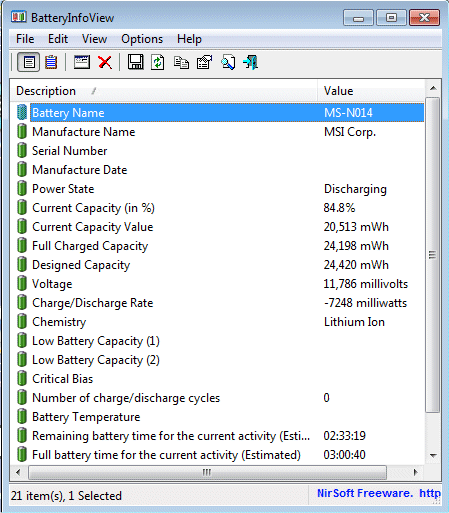
Battery Information Panel
The main view lists every battery attribute: name, manufacturer, serial number, capacity, health percentage, voltage, and power state.
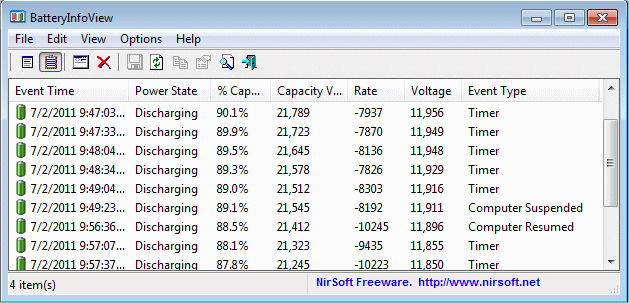
Battery Log Window
Press F8 to switch to the log view. Each row records a timestamp, power state, capacity percentage, voltage, and charge or discharge rate.
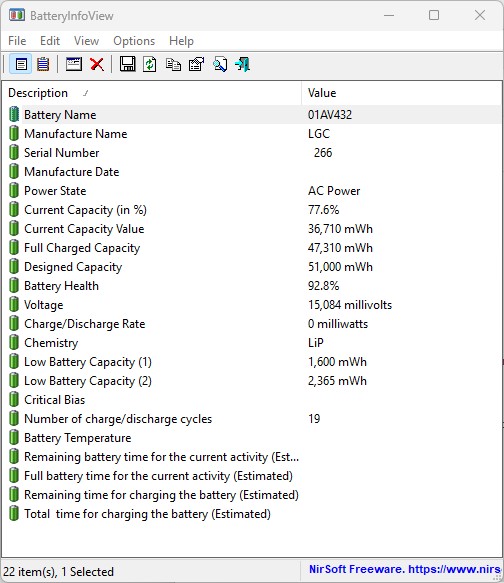
Real-World Battery Report
BatteryInfoView running on a ThinkPad X380 Yoga. Shows designed capacity versus full charge capacity to calculate battery wear.
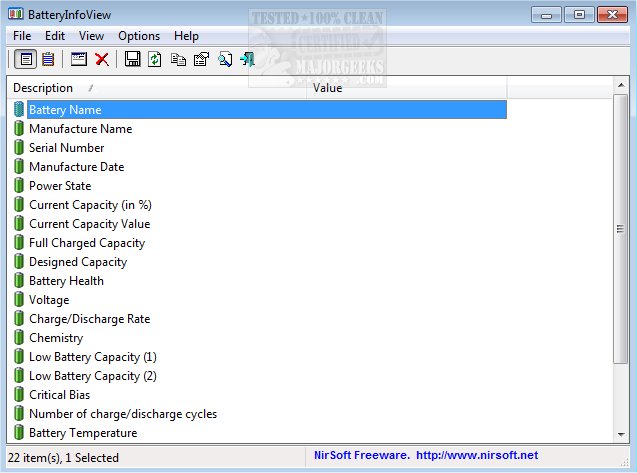
Compact Utility Interface
The lightweight window packs full battery diagnostics into a portable, no-install package under 115 KB.
Want to try it yourself? Download BatteryInfoView and check your battery health in seconds.
Getting Started with BatteryInfoView
From download to your first battery report in under two minutes. Here is everything you need to know about running BatteryInfoView on your Windows laptop.
Downloading BatteryInfoView
Head to our download section above and grab the ZIP file. BatteryInfoView comes in two versions: a 32-bit build and a 64-bit build. If your laptop runs Windows 10 or 11, pick the 64-bit version. Running an older system like Windows 7 on a 32-bit machine? The standard 32-bit build has you covered. Both files weigh in around 115 KB, so the download finishes almost instantly on any connection.
There is no installer to worry about. BatteryInfoView is a portable application, which means the ZIP contains a single executable (BatteryInfoView.exe) and a readme file. No MSI, no setup wizard, no bundled toolbars. You just extract and run. This also makes it easy to carry on a USB drive if you troubleshoot battery issues on multiple machines.
C:ToolsBatteryInfoView for the extracted files. Keeping portable utilities in one place saves you from hunting through your Downloads folder later.
NirSoft also provides language translation files if you want the interface in something other than English. You can download the relevant .ini file from the NirSoft page and drop it into the same folder as the executable.
Installation Walkthrough
Because BatteryInfoView is fully portable, installation is just an extract-and-run process. There are no registry entries written during setup, no background services installed, and nothing that needs uninstalling later.
- Extract the ZIP – Right-click the downloaded
.zipfile and select “Extract All” (built into Windows). Choose a destination folder. You will seeBatteryInfoView.exe, a readme text file, and possibly a language config file if you downloaded one. - Run BatteryInfoView.exe – Double-click the executable. The main window opens immediately and starts reading your battery data. No splash screen, no license agreement, no registration.
- Handle the SmartScreen prompt – Windows may show a “Windows protected your PC” warning because the file is not code-signed with an EV certificate. Click “More info”, then “Run anyway”. This is normal for small freeware utilities and does not indicate a security issue.
- Pin for easy access – Right-click the exe and select “Pin to taskbar” or create a desktop shortcut. Since there is no Start Menu entry for portable apps, this saves you navigating to the folder each time.
BatteryInfoView is a Windows-only utility. It supports Windows 2000 through Windows 11, covering both 32-bit and 64-bit editions. There are no macOS or Linux versions available. On older systems like Windows XP or Vista, use the 32-bit build.
For automated deployments or scripted setups, you can also install BatteryInfoView through the Chocolatey package manager:
Or through Scoop:
scoop install batteryinfoview
Initial Setup and Configuration
BatteryInfoView does not have a first-run wizard. It opens directly into the Battery Information view and starts collecting data right away. That said, a few settings are worth adjusting before you rely on the tool for ongoing monitoring.
Open the Advanced Options dialog by pressing F9 or going to Options > Advanced Options from the menu bar. Here is what you will find:
- Battery Information Update Interval – Defaults to every 10 seconds. For most people this is fine. If you are logging data over several hours and want a lighter footprint, bump it to 30 or 60 seconds.
- Battery Log Update Interval – Defaults to every 30 seconds. Each interval adds a new row to the log view. If you plan to log overnight, consider setting this to 60 or 120 seconds to keep the log manageable.
- Add log items on suspend/resume events – Enabled by default. Leave it on. It captures battery readings right before sleep and right after wake, which helps you spot overnight drain.
- Auto-save log to file – Disabled by default. Turn this on if you want a persistent CSV or tab-delimited record saved to disk automatically. Point it to a folder you back up.
Two more settings worth knowing about: Options > Put Icon In Tray minimizes BatteryInfoView to the system tray with a tooltip showing current capacity and health. And Options > Always On Top keeps the window visible while you work in other applications, which is handy during charge/discharge testing.
If you are migrating from Windows’ built-in powercfg /batteryreport, there is nothing to import. BatteryInfoView reads battery data directly from the Windows API in real time rather than relying on stored report files.
Checking Your Battery Health
The first thing most people want to know is how healthy their battery actually is. Let us walk through that with BatteryInfoView.
When you launch the program, you land on the Battery Information tab (you can also press F7 to switch back to it). This view shows a property-value list with every detail your battery controller reports. The two rows that matter most for a health check:
- Designed Capacity – The original factory capacity in mWh (e.g., 51,000 mWh).
- Full Charged Capacity – What the battery can actually hold today after wear (e.g., 47,430 mWh).
BatteryInfoView calculates the Battery Health percentage for you by dividing full charged capacity by designed capacity. A reading above 80% is considered good. Below 50% means the battery is near end of life and a replacement should be on your radar.
Now switch to the Battery Log tab by pressing F8. This view records a new row at the interval you configured (default: every 30 seconds). Each row logs the timestamp, power state (charging/discharging/AC power), current capacity percentage, voltage, and charge or discharge rate in mW. Let the log run for 20-30 minutes while you use the laptop normally. You will see how quickly the battery drains under your typical workload.
To save this data, press Ctrl+S or go to File > Save Selected Items. You can export as CSV, HTML, XML, or tab-delimited text. CSV works well for opening in Excel or Google Sheets to chart the discharge curve over time.
| Shortcut | Action |
|---|---|
| F7 | Switch to Battery Information view |
| F8 | Switch to Battery Log view |
| F9 | Open Advanced Options dialog |
| Ctrl+S | Save selected items to file |
| Ctrl+L | Copy selected items to clipboard |
| Ctrl+A | Select all items |
| Ctrl+H | Open HTML report in browser |
If your laptop has multiple batteries (some ThinkPads and Surface devices do), BatteryInfoView displays data for each one separately. Use View > Choose Columns in the log view to customize which data points appear.
Tips, Tricks and Best Practices
Run it from the command line for quick reports. BatteryInfoView supports command-line export without opening the GUI. Running BatteryInfoView.exe /scomma battery.csv dumps the current battery info to a CSV file and exits. You can schedule this with Windows Task Scheduler to capture daily snapshots automatically. Other formats: /shtml for HTML, /sxml for XML, /stab for tab-delimited.
Track battery degradation over time. Enable the auto-save log feature (F9 > check “Auto-save log”) and point it to a persistent folder. After a few weeks, open the exported CSV in a spreadsheet and chart the “Full Charged Capacity” column. A sharp downward trend means your battery is wearing faster than expected.
Use the tray icon for passive monitoring. Enable Options > Put Icon In Tray and check Options > Start As Hidden. BatteryInfoView will launch silently and sit in your system tray showing a tooltip with real-time battery stats. Add a shortcut to the Windows Startup folder (shell:startup) to have it run on every boot.
Common mistake: reading data on a desktop. BatteryInfoView queries the Windows battery subsystem. On desktops and servers without a battery, every field reads as empty or zero. If you see all blank values, your machine simply does not have a battery to report on.
Check your charge cycles. The “Charge/Discharge Cycles” row tells you how many full charge cycles the battery has completed. Most lithium-ion laptop batteries are rated for 300-500 cycles before capacity drops below 80%. If your cycle count is above 400 and health is dropping, that is normal wear.
BatteryInfoView.exe /savelangfile, edit the resulting .ini file, and drop it back in the program folder. The interface picks up the translation on next launch.
For help and updates, check the download section for the latest version. NirSoft does not include an auto-updater, so bookmark the page and check back periodically. The Chocolatey package (choco upgrade batteryinfoview) handles updates automatically if you installed through that method.
Ready to check your battery health? Download BatteryInfoView and get your first report in seconds.
Frequently Asked Questions
Answers to common questions about downloading, using, and troubleshooting BatteryInfoView on Windows.
Is BatteryInfoView safe to download?
Yes, BatteryInfoView is safe. It is developed by Nir Sofer under the NirSoft brand, a one-person operation that has published over 100 free Windows utilities since the early 2000s. NirSoft tools are regularly recommended by IT professionals, Microsoft MVPs, and publications like Ghacks and Ed Tittel’s Windows Enterprise Desktop blog.
The BatteryInfoView download is a small ZIP file (approximately 115 KB for the 32-bit version) containing just the executable and a help file. There is no installer that could bundle adware or toolbars. The program reads battery data through standard Windows ACPI interfaces and makes no network connections. It does not write to the registry, does not collect telemetry, and does not modify system files.
- Download only from the official NirSoft page or from our download section which links to the official source
- Avoid third-party download sites that repackage NirSoft tools with their own installers
- If Windows SmartScreen warns you, click “More info” then “Run anyway” — this happens because the file is not code-signed, not because it is harmful
Pro tip: You can verify the file hash against the one listed on the NirSoft page. BatteryInfoView has been scanned clean on VirusTotal by the vast majority of engines for every release.
For download links, visit our download section which points directly to the official NirSoft ZIP files.
Why does my antivirus flag BatteryInfoView as a threat?
This is a false positive. Some antivirus engines flag NirSoft utilities because other NirSoft tools (specifically password-recovery utilities like WebBrowserPassView) have been misused by malware authors who bundle them without permission. Antivirus vendors sometimes flag the entire NirSoft catalog as a precaution, even though BatteryInfoView itself has zero malicious capabilities.
BatteryInfoView only reads battery status data from the Windows ACPI battery driver. It cannot access passwords, network traffic, or any sensitive information. NirSoft maintains a dedicated false positive report page where they document this issue and provide instructions for reporting it to antivirus vendors. The false positive rate has decreased over the years, but a handful of engines still flag it.
- Add BatteryInfoView.exe to your antivirus exclusion list (usually under Settings > Exclusions > Add File)
- If using Windows Defender, go to Windows Security > Virus & threat protection > Manage settings > Exclusions
- Report the false positive to your antivirus vendor so they can update their definitions
- Re-download from the official NirSoft source if your AV quarantined the file
Pro tip: Upload BatteryInfoView.exe to VirusTotal yourself. You will see that 60+ out of 70 engines mark it as clean, with only a few obscure engines flagging it.
See our features section for a full list of what BatteryInfoView actually does.
Where is the official safe download for BatteryInfoView?
The official download lives on the NirSoft website at nirsoft.net/utils/battery_information_view.html. Our download section links directly to the official 32-bit and 64-bit ZIP files hosted on NirSoft’s own server.
BatteryInfoView is also available through two trusted package managers: Chocolatey (community package batteryinfoview) and Scoop (in the NirSoft bucket). Both pull the binary straight from NirSoft. These are useful if you manage multiple machines or prefer command-line installs. The download is roughly 115 KB for the 32-bit build and a similar size for 64-bit.
- Official source: nirsoft.net — always the safest option
- Chocolatey: run
choco install batteryinfoviewin an elevated terminal - Scoop: run
scoop bucket add nirsoftthenscoop install batteryinfoview - Avoid: sites like Softonic, CNET Download, or any site that wraps NirSoft tools in their own installer
Pro tip: Bookmark the NirSoft utilities page directly. Nir Sofer does not use a CDN or download mirrors, so the ZIP always comes from the same nirsoft.net server.
Head to our download section for direct links to both the 32-bit and 64-bit versions.
Does BatteryInfoView work on Windows 11?
Yes. BatteryInfoView v1.26 works on Windows 11, including the 23H2 and 24H2 updates. It supports every Windows version from Windows 2000 through Windows 11, in both 32-bit and 64-bit editions.
The program reads battery data through the Windows ACPI battery driver interface, which has remained consistent across Windows versions for over two decades. There are no known compatibility issues with Windows 11’s newer features like Copilot, Widgets, or the redesigned taskbar. BatteryInfoView runs as a standard desktop application and does not depend on any framework (.NET, Visual C++ redistributable, etc.), so there is nothing to install or configure for Windows 11 compatibility.
- Works on Windows 11 Home, Pro, Enterprise, and Education editions
- Compatible with both Intel/AMD (x86-64) and ARM-based Windows 11 devices through x86 emulation
- System tray icon displays correctly in Windows 11’s redesigned notification area
Pro tip: On Windows 11, you can pin BatteryInfoView to the Start menu or taskbar for quick access. Right-click the EXE and select “Pin to Start” or “Pin to taskbar.”
Check our system requirements section for the full compatibility list.
Does BatteryInfoView work on Mac or Linux?
No. BatteryInfoView is a Windows-only utility. It uses the Windows ACPI battery driver API, which does not exist on macOS or Linux. There is no Mac or Linux port, and Nir Sofer has not indicated plans to create one.
If you need battery monitoring on other platforms, there are good alternatives. On macOS, coconutBattery (free version available) shows battery health, cycle count, and live charge data for MacBooks and connected iPhones. On Linux, the built-in upower -i /org/freedesktop/UPower/devices/battery_BAT0 command gives similar information. Battop is a Rust-based terminal app for Linux that provides a real-time battery dashboard.
- macOS: coconutBattery (free), iStat Menus (paid), Battery Health 2
- Linux:
upower(built-in), Battop (terminal UI), TLP for battery optimization - Cross-platform: HWMonitor has a Windows-only version but is worth mentioning as an alternative for broader hardware monitoring
Pro tip: If you run Windows in a virtual machine on Mac or Linux, BatteryInfoView will not detect the host battery because the VM does not pass through ACPI battery data by default. You need native Windows on bare metal for accurate readings.
See our features section for what BatteryInfoView offers on Windows.
Can I use BatteryInfoView on a desktop PC?
No. BatteryInfoView requires a battery to function. Standard desktop PCs do not have an internal battery, so the program will open but show no data. It is designed for laptops, tablets, and other battery-powered Windows devices.
The exception is desktops with an internal UPS (uninterruptible power supply) that exposes battery data through the Windows ACPI interface. Some enterprise UPS units connected via USB report as a battery device to Windows. In those cases, BatteryInfoView may detect and display the UPS battery information, though the data fields (like cycle count or chemistry) may be limited compared to a laptop battery.
- Laptops, ultrabooks, and 2-in-1 devices: fully supported
- Microsoft Surface tablets: fully supported, including dual-battery models like Surface Book
- Desktop PCs without UPS: not supported (no battery to read)
- Desktop PCs with ACPI-compatible UPS: may partially work
Pro tip: For desktop hardware monitoring (CPU temps, fan speeds, voltages), use HWMonitor or Open Hardware Monitor instead. Those tools cover what BatteryInfoView does not on desktops.
Review the system requirements for full device compatibility details.
Is BatteryInfoView completely free to use?
Yes. BatteryInfoView is 100% free with no restrictions. There is no trial period, no premium tier, no feature gating, and no ads. Every NirSoft utility follows this same model.
The license allows both personal and commercial use. You can run BatteryInfoView on office laptops, use it for IT diagnostics at a company, or include it in your personal toolkit. The only restriction is redistribution: you cannot repackage BatteryInfoView inside other software or host it on your own download site for profit without permission from Nir Sofer. The copyright notice in the program reads “2011-2024 Nir Sofer.”
- Personal use: free, no restrictions
- Business/corporate use: free, no restrictions
- Redistribution in other software: requires NirSoft permission
- Hosting on third-party download sites: requires NirSoft permission
Pro tip: NirSoft accepts donations through a link on their website if you find their tools useful. Nir Sofer maintains over 100 utilities as a solo developer, all free.
Download the full-featured version from our download section at no cost.
Is there a paid or Pro version of BatteryInfoView?
No. BatteryInfoView has a single version that includes every feature. There is no “Pro,” “Premium,” or “Enterprise” edition. What you download is the complete product.
This applies to all NirSoft utilities. Nir Sofer has never charged for any of his 100+ tools. The business model is simple: the tools are free, and the NirSoft website generates modest revenue from small ads. Some competing battery tools (like BatteryBar Pro at $8 or iStat Menus at $11.99) charge for advanced features, but BatteryInfoView gives you detailed battery data, logging, CSV/HTML/XML export, command-line automation, and system tray support at no cost.
- BatteryInfoView: free, all features included
- BatteryBar Pro: $8 one-time, adds floating toolbar and notifications
- coconutBattery Plus (macOS): $12, adds iOS device history and advanced charts
Pro tip: If someone is selling BatteryInfoView or a “pro” version of it, that is unauthorized. The real tool is always free from NirSoft.
Get all features for free from our download section.
How do I download and install BatteryInfoView?
BatteryInfoView does not need installation. It is a portable application. You download a ZIP file, extract it, and run the EXE. The whole process takes under 30 seconds.
The download is roughly 115 KB, so it finishes almost instantly on any connection. Inside the ZIP you will find BatteryInfoView.exe (the main program) and a readme/help file. No DLLs, no registry entries, no dependencies. The program runs directly from wherever you extract it — your desktop, a USB drive, a network share.
- Go to our download section and click the download link for your architecture (32-bit or 64-bit)
- Save the ZIP file to a location you will remember (Desktop or Downloads folder)
- Right-click the ZIP and select “Extract All” (or use 7-Zip/WinRAR)
- Open the extracted folder and double-click BatteryInfoView.exe
- The program opens immediately showing your battery information
Pro tip: Create a shortcut to BatteryInfoView.exe in your Windows Startup folder (shell:startup) if you want it to launch automatically when you log in. Add /StartAsHidden to the shortcut target to start it minimized to the system tray.
See our download section for the official 32-bit and 64-bit links.
BatteryInfoView portable vs installer — which should I choose?
There is only a portable version. BatteryInfoView does not come with an installer at all. The official download from NirSoft is always a ZIP archive containing the standalone executable.
This is actually an advantage. Portable apps leave no traces in the Windows registry, do not require administrator privileges to “install,” and can be moved between machines on a USB drive. IT technicians often carry BatteryInfoView on a thumb drive alongside other NirSoft utilities to diagnose laptop battery issues on client machines. Since the entire program is a single 115 KB executable, it loads instantly with zero setup overhead.
- No registry modifications — the program stores settings in a BatteryInfoView.cfg file in the same folder
- No Start Menu entries or desktop shortcuts created automatically
- Runs directly from USB drives, network shares, or cloud-synced folders
- To “uninstall,” just delete the folder — nothing else to clean up
Pro tip: If you see a site offering a BatteryInfoView “installer” or “setup.exe,” avoid it. That is a third-party wrapper that may bundle adware. The legitimate NirSoft release is always a plain ZIP.
Grab the portable ZIP from our download section.
BatteryInfoView shows blank fields or no data. How do I fix it?
If BatteryInfoView opens but shows empty or missing fields, the issue is almost always with the battery hardware or its driver, not with BatteryInfoView itself. The program reads whatever the Windows ACPI battery driver reports, and some battery controllers do not expose every data point.
Fields like serial number, manufacture date, and unique ID depend on the battery manufacturer embedding that data in the battery’s firmware. Cheaper or older batteries often skip these fields. The core fields — current capacity, full charge capacity, voltage, and power state — should always show values on any functioning laptop battery.
- Open Device Manager and expand “Batteries” — confirm you see “Microsoft ACPI-Compliant Control Method Battery”
- If the battery driver shows a warning icon, right-click it and select “Update driver” or “Uninstall device” then restart
- Run
powercfg /batteryreportin Command Prompt — if this also shows no data, the problem is at the driver or hardware level - Try the 64-bit version if you are on a 64-bit system (or vice versa) to rule out architecture issues
- On Surface devices, make sure the Surface UEFI firmware is up to date through Windows Update
Pro tip: If only some fields are blank (like Manufacture Date or Serial Number), that is normal for many battery brands. The battery controller simply does not provide that data. The health and capacity fields are the most important ones.
Check our system requirements for compatible devices and drivers.
How do I fix BatteryInfoView not opening or crashing on launch?
BatteryInfoView crashes are rare because the program is a simple native executable with no external dependencies. When it does happen, the most common cause is antivirus interference or a corrupted download.
The program is compiled as a standard Win32 application (no .NET, no Java, no runtime libraries). It should start in under a second on any modern system. If it closes immediately after opening, your antivirus has likely quarantined or modified the file. Version 1.26 is the latest release as of 2024, and it runs on systems as old as Windows 2000, so hardware requirements are essentially zero.
- Check your antivirus quarantine — restore BatteryInfoView.exe if it was flagged
- Add BatteryInfoView.exe to your antivirus exclusion list
- Delete the existing files and download a fresh copy from the official NirSoft source
- Make sure all files from the ZIP were extracted (do not run the EXE from inside the ZIP)
- Try right-clicking the EXE and selecting “Run as administrator”
- On a desktop PC, the program may open briefly then close because no battery is detected — this is expected behavior
Pro tip: If you run BatteryInfoView on a desktop without a battery, it will not crash but will show an empty window. You can check the status bar at the bottom — if it says “0 items,” no battery was detected.
See our download section for clean, official download links.
BatteryInfoView stopped working after a Windows update. What happened?
Major Windows updates occasionally reset or update the ACPI battery driver, which can temporarily affect battery reporting tools. This is not specific to BatteryInfoView — the built-in powercfg /batteryreport command would also show issues in this case.
Windows 10 and 11 feature updates sometimes replace the generic Microsoft ACPI battery driver with a manufacturer-specific one, or vice versa. This can cause all battery utilities to report different values or missing fields until the driver stabilizes. In rarer cases, the update may quarantine or remove third-party executables that the new Windows Defender definitions flag as potentially unwanted.
- Download the latest BatteryInfoView v1.26 from NirSoft — the version you had may have been removed by Windows Defender during the update
- Open Device Manager, expand Batteries, right-click “Microsoft ACPI-Compliant Control Method Battery” and select “Uninstall device”
- Restart your laptop — Windows will reinstall the battery driver automatically
- Run BatteryInfoView again and check if data appears
Pro tip: After major Windows updates (like 22H2 to 23H2), run powercfg /batteryreport first. If the built-in report also lacks data, the issue is with the battery driver, not BatteryInfoView. Wait for the next driver update from your laptop manufacturer.
Revisit our download section to grab a fresh copy if yours was removed.
How do I update BatteryInfoView to the latest version?
Download the latest version and replace the old executable. BatteryInfoView has no built-in updater. The current version is 1.26, released in 2024.
Since BatteryInfoView is portable, updating is straightforward: download the new ZIP from NirSoft (or from our download section), extract BatteryInfoView.exe, and copy it over the old file. Your settings are stored in a BatteryInfoView.cfg file in the same folder, and they carry over automatically. If you installed via Chocolatey, run choco upgrade batteryinfoview. Via Scoop, run scoop update batteryinfoview.
- Check your current version: open BatteryInfoView, go to Help > About
- Visit the NirSoft page or our download section and note the latest version number
- If a newer version exists, download the ZIP and extract BatteryInfoView.exe
- Copy the new EXE into the folder where you keep BatteryInfoView, replacing the old one
Pro tip: BatteryInfoView updates are infrequent — the software is mature and stable. Unless you are hitting a specific bug, there is rarely an urgent reason to update. Version 1.26 added the “Sort Log On Every Update” option, which is the most notable recent change.
Get the latest version from our download section.
BatteryInfoView vs powercfg /batteryreport — which is better?
They solve different problems. powercfg /batteryreport is a built-in Windows command that generates a one-time HTML report with historical capacity data going back weeks. BatteryInfoView is a real-time monitoring tool with a GUI, live logging, and data export. Both read the same underlying ACPI battery data.
The battery report from powercfg is excellent for checking how your battery has degraded over time. It shows full charge capacity at installation, recent usage patterns, and estimated battery life trends. BatteryInfoView, on the other hand, excels at live monitoring: you can watch charge rates in real time, log battery behavior during specific tasks, and export that data to CSV for analysis.
- powercfg /batteryreport: best for one-time health checks, historical degradation trends, already installed on every Windows PC
- BatteryInfoView: best for real-time monitoring, ongoing logging, data export (CSV/HTML/XML), system tray integration, command-line automation
- They complement each other — use powercfg for the big picture, BatteryInfoView for detailed day-to-day monitoring
Pro tip: Run powercfg /batteryreport /output C:battery.html once a month to track long-term degradation. Use BatteryInfoView’s log mode (F8) when you want to measure charge/discharge rates during specific workloads.
Explore BatteryInfoView’s monitoring capabilities in our features section.
What are the best alternatives to BatteryInfoView?
The best alternatives depend on your platform and what you need. For Windows, the closest free competitors are the built-in powercfg /batteryreport command and HWMonitor. For Mac, coconutBattery is the standard.
BatteryInfoView stands out for being tiny (115 KB), fully portable, and focused purely on battery data. HWMonitor covers more hardware (CPU, GPU, fans) but gives less battery detail. BatteryBar adds a taskbar widget but costs $8 for the Pro version with advanced features. If you want something that actively manages your battery (charge thresholds, power plans), look at BatteryCare on Windows or the manufacturer’s own tool (Lenovo Vantage, Dell Power Manager).
- Windows (free): powercfg /batteryreport (built-in), HWMonitor, Open Hardware Monitor, BatteryCare
- Windows (paid): BatteryBar Pro ($8), AIDA64 ($39.95)
- macOS: coconutBattery (free/paid), iStat Menus ($11.99)
- Linux: upower (built-in), Battop (terminal UI), TLP (optimization)
Pro tip: For IT professionals who diagnose battery issues across many machines, BatteryInfoView’s portability and command-line export options make it the most practical choice. Carry it on a USB drive alongside other NirSoft tools.
Compare features in detail on our features page.
How do I use BatteryInfoView command-line options for automated exports?
BatteryInfoView supports command-line flags that export battery data to a file and exit. This is useful for automated monitoring via Windows Task Scheduler or scripts.
The command-line export runs the program silently (no GUI), captures the current battery snapshot, writes it to the specified file, and terminates. You can choose from seven output formats: plain text, tab-delimited, comma-separated (CSV), tabular text, horizontal HTML, vertical HTML, and XML. The log mode is not available via command line — only the Battery Information snapshot.
- Open Command Prompt or PowerShell in the folder containing BatteryInfoView.exe
- Run
BatteryInfoView.exe /scomma C:logsbattery.csvto export as CSV - Other formats:
/stext(text),/stab(tab-delimited),/shtml(HTML),/sverhtml(vertical HTML),/sxml(XML),/stabular(formatted text) - Create a Windows Task Scheduler task to run this command every hour for ongoing monitoring
- Parse the CSV output with PowerShell or Python for custom alerting (e.g., alert when health drops below 80%)
Pro tip: Combine with a one-liner like BatteryInfoView.exe /scomma "C:logsbattery_%date:~-4%-%date:~4,2%-%date:~7,2%.csv" to create date-stamped log files. This gives you a historical archive of battery health snapshots.
See all available features in our features section.
How do I read the Battery Log and what does each column mean?
The Battery Log (press F8 to switch to it) records a new row every 30 seconds by default. Each row captures a snapshot of your battery state at that moment, which is useful for tracking charge and discharge behavior over time.
The log columns show: timestamp, battery status (charging, discharging, AC power), current capacity in mWh or percentage, full charge capacity, voltage in millivolts, and charge/discharge rate in milliwatts. A positive rate means charging; a negative rate means discharging. The rate value tells you exactly how much power your laptop is drawing from (or pushing into) the battery at that instant.
- Log Time: timestamp of the reading
- Status: Charging, Discharging, or AC Power (fully charged on AC)
- Current Capacity (%): battery level as a percentage
- Current Capacity Value: absolute capacity in mWh
- Full Charge Capacity: maximum the battery can hold right now (decreases with wear)
- Voltage: current battery voltage in millivolts
- Charge/Discharge Rate: power flow in milliwatts (positive = charging, negative = discharging)
Pro tip: Change the log interval through Options > Advanced Options (F9). Set it to 10 seconds for detailed charge curve analysis, or 5 minutes for long-term overnight monitoring. Export the log to CSV with Ctrl+S and chart it in Excel to visualize your battery’s charge profile.
Learn more about BatteryInfoView’s monitoring capabilities in our features section.
Still have questions? Visit the official NirSoft page or download BatteryInfoView and try it yourself.